Learn what you can edit in Study Step 2 "Access".
TABLE OF CONTENTS
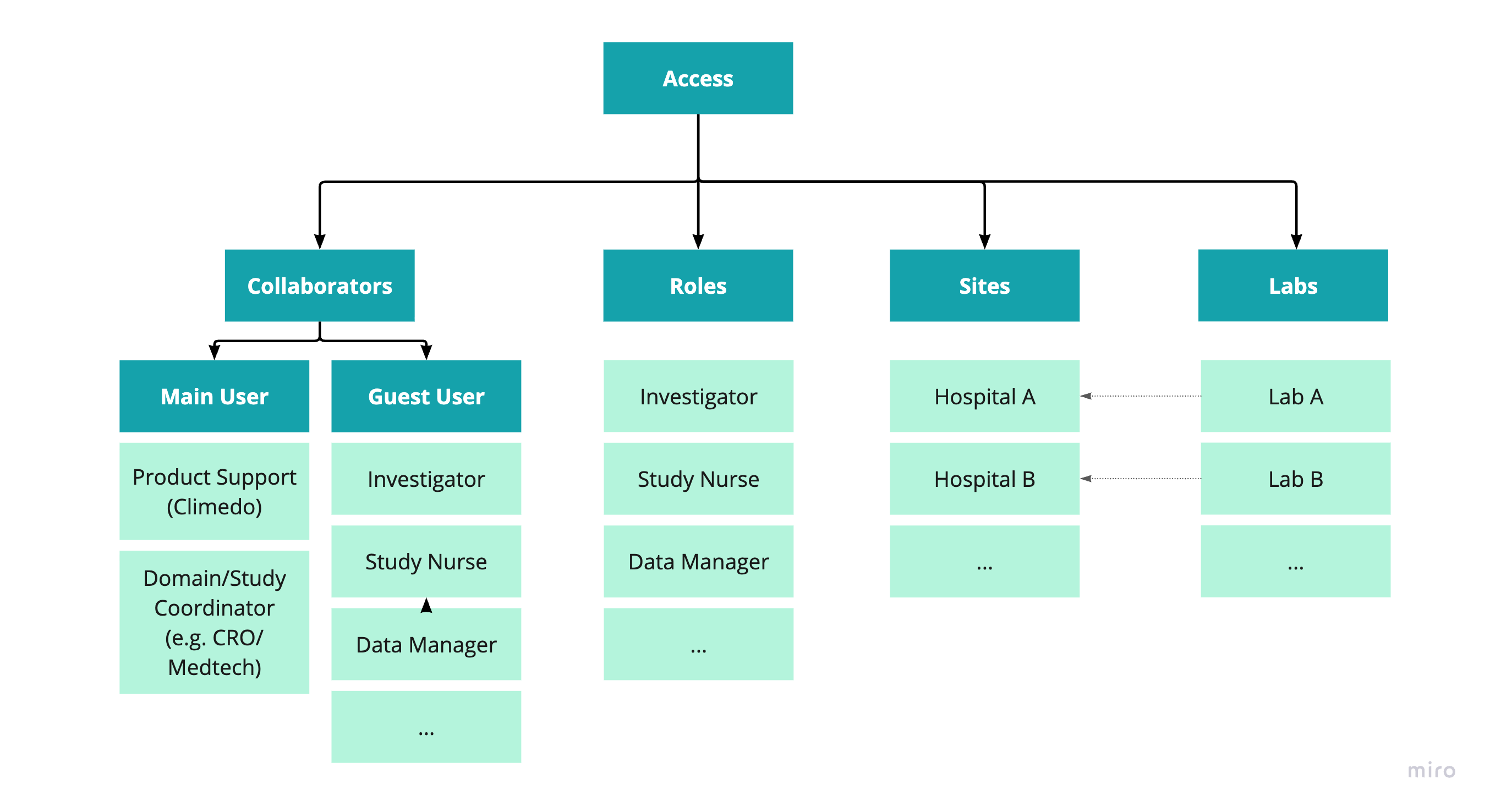
The following examples are intended to provide an overview of Climedo's structure and the terminology used to determine who has access to a study:
In Step 2 of your study you can edit the "Access" to your study. There are three different tabs: "Collaborators" > "Roles" > "Sites" > "Labs".
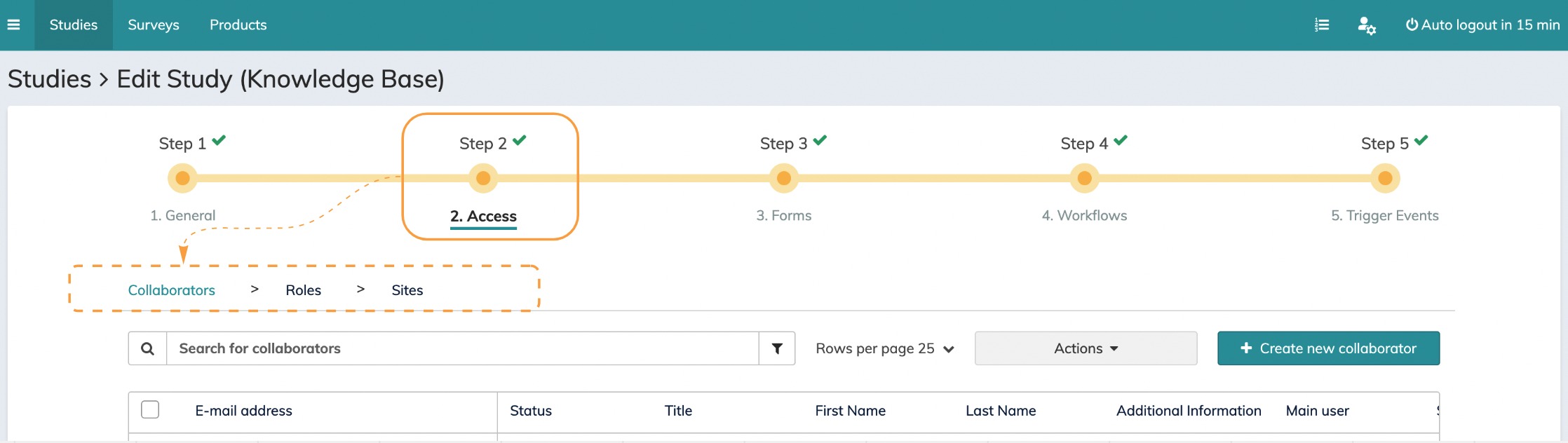
⚠️ We recommend the following order for setting up your account: First, set up your Roles, then your Sites and Labs, and finally your Collaborators. Otherwise, you will find that, in order to add a collaborator, you first need to create a role and site. |
Roles:
View and edit all the different roles you have created. For example, you can create roles such as 'Data Manager' or 'Investigator' and specify whether they can 'read', 'update', 'export' or 'sign' data from your study. You can also edit the permissions for each role individually for each module (e.g. scheduled events, (S)AE module, queries). Several sample roles are provided by Climedo and can be used, updated or deleted from the study. For details, click here: How can I set up user roles?
Sites:
Add all the sites participating in your study and assign them a Site ID. Then, select the country in which they are located. For details, read How can I add and update sites? (Step 2.3).
Labs:
Here you can define lab parameters centrally, set up site- or lab-specific units and reference ranges to validate entered values. Next to the configuration, this tab gives you an overview of all configured labs, their assigned site(s) and reference files. For details, refer to our article How do I set up a (local) lab data table? & Collecting lab data with site-/lab-specific references.
Collaborators:
Here you can see an overview of all the collaborators in the study and create new ones. To add a collaborator, you need to fill in their personal information, including their email address and name. You also need to give them access to the site and assign them one or more roles in the study. Finally, you can edit their management rights. You also need to specify whether your collaborator is a guest or main user. For details, read click How do I set up collaborators and edit their rights? (Step 2.1).
Video
When using our software, you will encounter two different types of users - the main user and the guest user. In this video, we explain these user types. Furthermore you will learn about the abilities of both groups.
✉️ Still have questions? Feel free to contact your Customer Success Manager or email us at support@climedo.de. |
Was this article helpful?
That’s Great!
Thank you for your feedback
Sorry! We couldn't be helpful
Thank you for your feedback
Feedback sent
We appreciate your effort and will try to fix the article