Learn how to configure instance-wide authentication and security settings — session duration, password policy, two-factor authentication and persistent sessions — from the Security Settings page.
TABLE OF CONTENTS
1. Access rights and navigation
4.1. Enabling two-factor authentication
6. Saving changes and when they take effect
1. Access rights and navigation
1.1. Granting the "Security settings" right
Access to the Security Settings page is controlled by a dedicated main user right.
- Open the "Edit main user" modal for the relevant user.
- In the Main user rights section, locate the "Security settings" permission category. .
- Tick "Update" to allow the user to open and modify the Security Settings page.
- Tick "Export" if the user should also be able to export the settings. Export can only be granted together with Update.
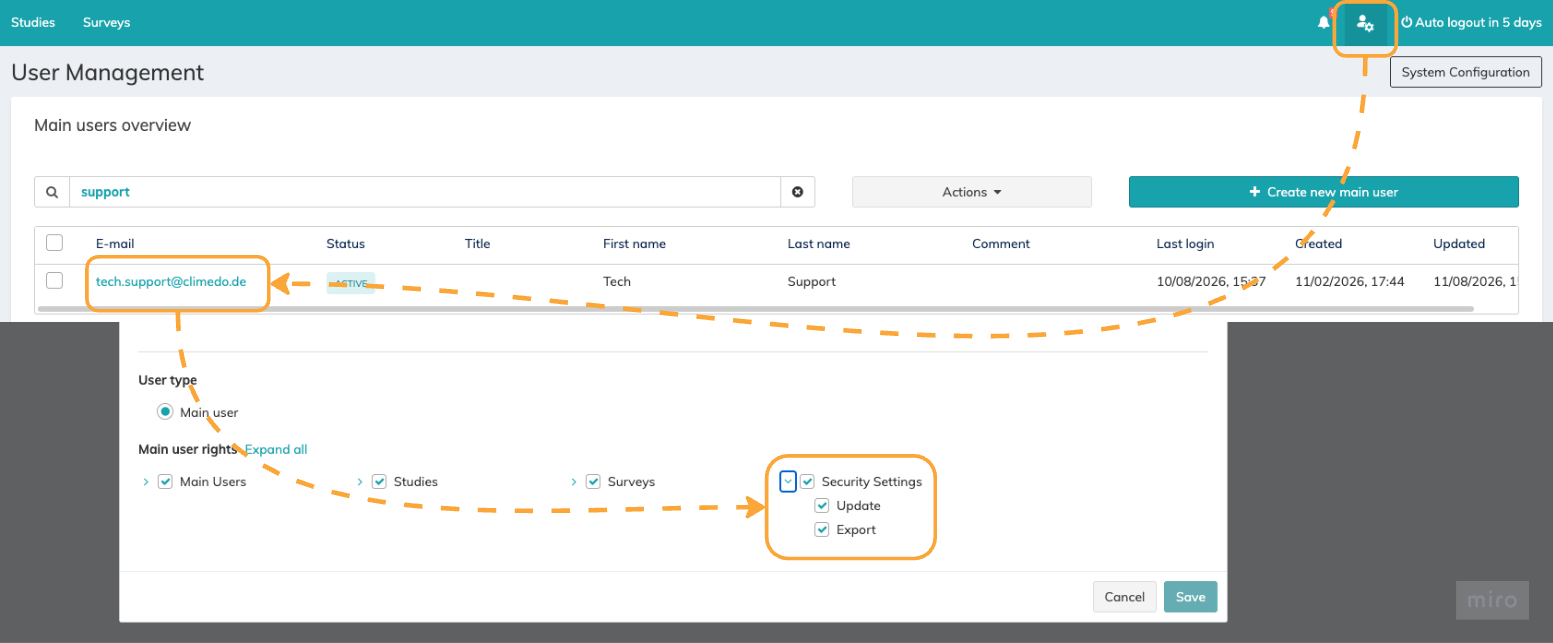
1.2. Opening the Security Settings page
Only main users with the "Update" permission described above can see and open the page.
- Open the "Main User" modal in the top right to enter the User management area.
- Select "Security settings" in the sidebar, positioned directly below the Dashboard button.
The page opens with the breadcrumb "User management > Security settings" and is organised into section cards, described in the following sections.

The following sections describe the Security Settings available for instance-wide configuration.
2. Session & Token Settings
This card, marked with a clock icon, controls how long a login remains valid and how sessions end.
- JWT token validity — how long a user's session token remains valid before reauthentication is required. Options: 1, 2, 4, 8, 12, 24 and 48 hours. Default: 8 hours.
- Inactivity timeout — how long before automatic logout due to inactivity. Options: 5, 10, 15 and 30 minutes, and 1 hour. Default: 15 minutes. An activity is defined as a user action, such as a click, on the Climedo browser tab.
- Invalidate token on logout — when enabled, tokens are immediately invalidated when a user logs out. Default: disabled.
3. Password Policy
This card, marked with a lock icon, defines the requirements every user password in the instance must satisfy.
- Minimum password length — a number input accepting values from 9 to 20 characters. Default: 9 characters. The value configured here is also shown to users on their profile page.
- Complexity rules — displayed as a read-only list: uppercase letter required, lowercase letter required, number required, special character required. These are shown as permanently ticked and cannot be modified: "These complexity rules are mandatory and cannot be changed."
- Password expiration — how often users must change their password. Options: 3 months, 6 months, 12 months, 24 months, and Never. Default: Never, which disables password expiration.
- Prevent previous password reuse — when enabled, users cannot reuse their most recent password when setting a new one. Default: disabled.
4. Two-Factor Authentication
4.1. Enabling two-factor authentication
This card is marked with a shield icon.
Switch the "Enable 2FA" toggle on to require users to verify their identity with a second factor (E-Mail). The toggle is off by default; while it is off, users log in with email and password only.
⚠️ Important: Two-factor authentication is requested at primary login and at the automatic login following a password reset. It is not requested when a user signs a form electronically — electronic signatures continue to require the password only.
|
4.2. Email OTP configuration
The "Email OTP Configuration" subsection appears once "Email OTP" is selected. Both of its values are fixed at the moment, meaning they are system-defined and cannot yet be changed:
- Code length — 6 digits.
- Code expiry — 15 minutes.
The verification email sent to the user contains the one-time code and, as an alternative, a verification link that logs the user in directly. The link is valid for the same 15 minutes.
4.3. Trusted devices
Trusted devices let users skip the second factor on a device they use regularly.
- Allow trusted devices — when enabled, users can mark their device as trusted to skip 2FA verification for the specified duration. Default: enabled.
- Trust duration — how long a trusted device remains trusted before 2FA is required again on primary login. Options: 1 day, 7 days, 14 days and 30 days. Default: 7 days.
When this is allowed, users are offered a "Trust this device for X days" checkbox during verification.
5. Keep me signed in
This setting allows sessions to persist across browser restarts, so that an expiring session token does not force a full new login.
- Allow "Keep me signed in" — allows users to stay signed in across browser restarts for up to the configured number of days, overriding the inactivity timeout for that period. Default: enabled.
- Maximum persistent session duration — the maximum duration for persistent sessions created through "Keep me signed in". Options: 1, 3, 7, 14 and 30 days. Default: 7 days.
While this is allowed, a "Keep me signed in for X days" checkbox is shown on the login page for all account types, where X is the configured maximum.
⭐ Good to know: "Keep me signed in" and trusted devices are two separate settings. "Keep me signed in" extends how long a session survives; trusted devices control whether the second factor is requested. Users with an active login-session still reach the JWT token expiry, but their JWT token is silently renewed instead of requiring a full login. |
6. Saving changes and when they take effect
Changes are saved per section and applied to the whole instance immediately.
When a change would force users to log in again, a confirmation modal appears before saving, warning that users will be signed out.
Changes that tighten security — for example shortening the token validity or reducing the trust duration — affect users who are currently logged in. They receive a notification banner and a 30-minute window in which to log in again, after which they are logged out. Refresh tokens and trusted devices that exceed the new limits are invalidated at the same time.
All other changes take effect as follows:
- Inactivity timeout — at the user's next login.
- Invalidate token on logout — immediately.
- "Keep me signed in" maximum duration — at the user's next login.
- Password policy — at the user's next password reset.
- Enable 2FA — at the user's next login.
- Allow trusted devices — at the user's next login.
- Trust duration — the next time a device is marked as trusted.
✉️ Still have questions? Feel free to contact your Customer Success Manager or email us at support@climedo.de. |
Was this article helpful?
That’s Great!
Thank you for your feedback
Sorry! We couldn't be helpful
Thank you for your feedback
Feedback sent
We appreciate your effort and will try to fix the article