Learn where and how to export data from your survey.
| Go to the Survey overview by clicking "Open survey entry overview" on the survey card. |
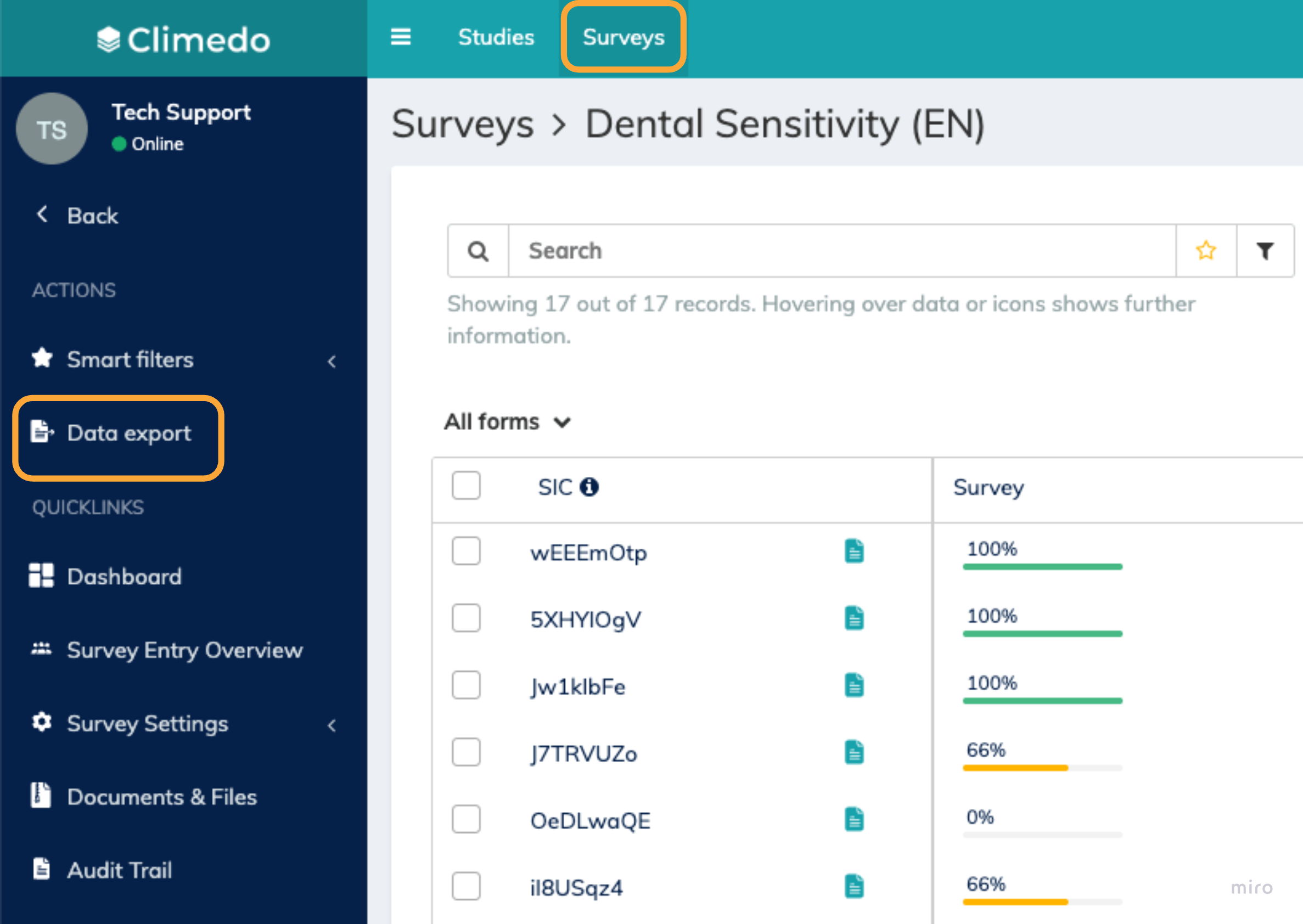
⭐ Either click on the 'Data export' button in the left-hand sidebar from anywhere within Climedo, or open the 'Data export' window from the 'Settings' menu. This will allow you to select the data you wish to export. ⭐ Alternatively, you can go to the relevant module (e.g. (S)AE Survey Overview) and select the data you wish to export by checking the boxes in front of the SIC. Then, select 'Data export' in the left-hand sidebar. This way, the upcoming window will be pre-filled. |
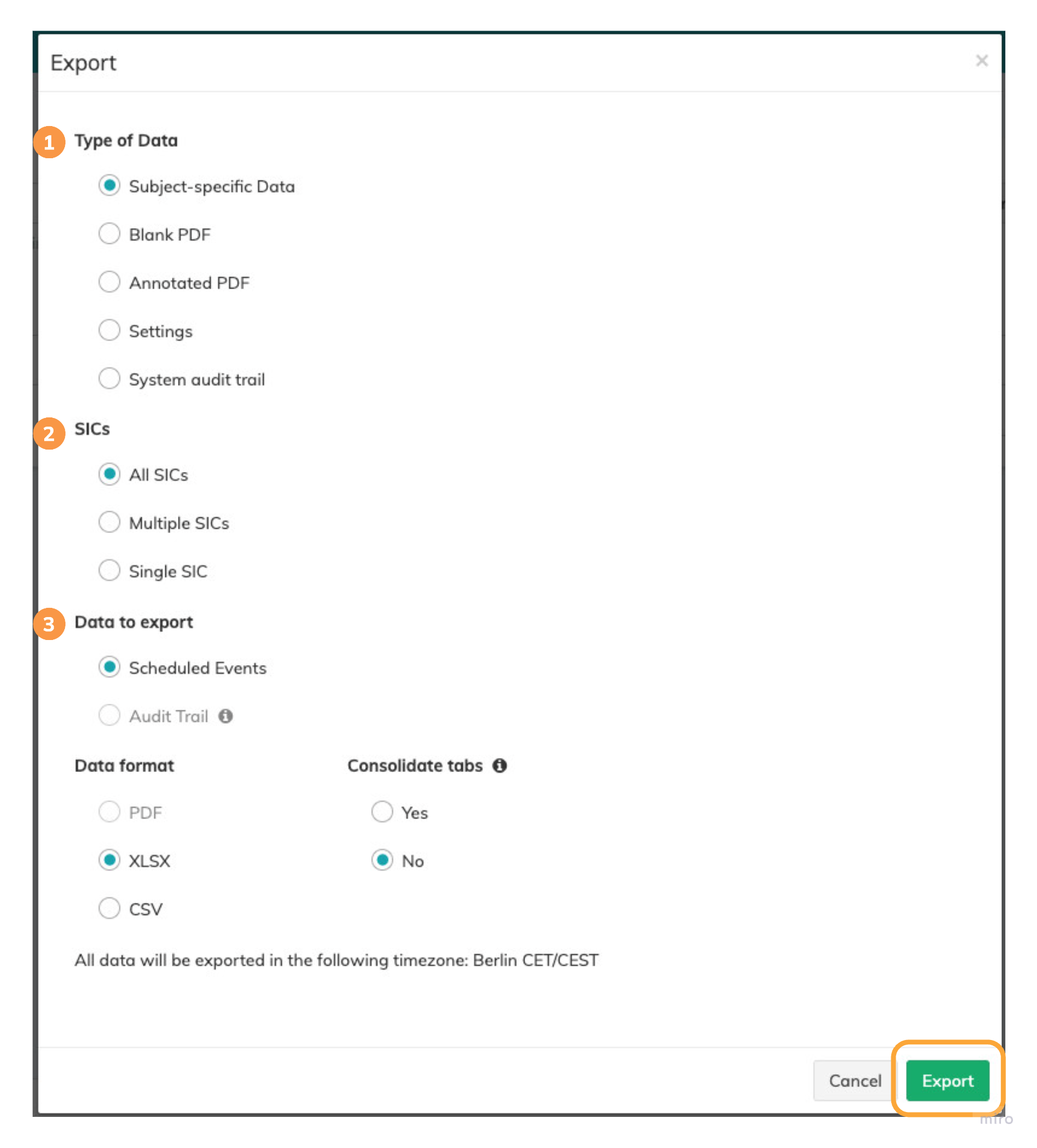
 | Type of data: Firstly, select the type of data that you want to export.
| |
 | SICs: If you have chosen to export subject-specific data, you will be able to select the relevant survey entries via the SICs section. You can select all SICs, multiple, or single ones. | |
 | Data to export and data format: Now, select the data you wish to export and the desired format. The available data formats will adapt according to the selected data. | |
Scheduled Events: In a PDF, you can decide whether to include unfilled fields within the input forms or not. XLSX gives you the opportunity to consolidate tabs which gives you a more compact version of the data (see below). | 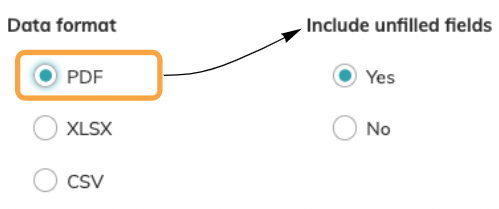
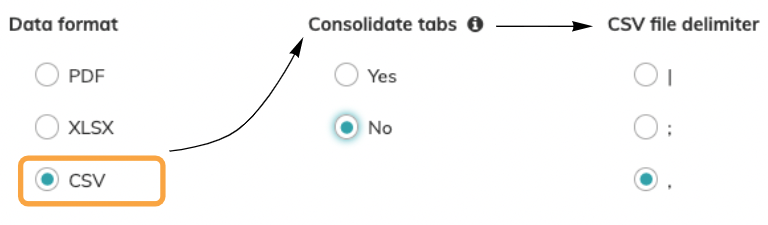 | |
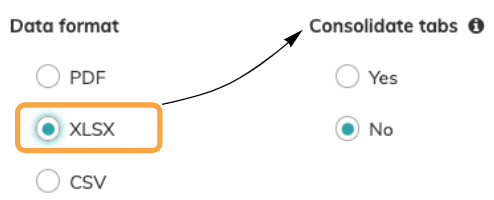
⭐ Consolidate tabs: an input form (e.g. "Health Status") that is used multiple times in the survey is consolidated in the same sheet/csv file. e.g. XLSX:
⭐ Unconsolidated tabs: each input form (e.g. Health Status") is exported in a different sheet/csv file. e.g. XLSX |


(Survey-entry-specific) Audit Trail: The Audit trail for a survey entry is available in PDF format. ⚠️ Please note that you can only pull an audit trail export for each individual survey entry. |
Finally, click the 'Export' button in the bottom right-hand corner to proceed. The download will start automatically. Depending on the volume of data, this may take a few moments.
⭐ You will either be able to download the export data directly through your browser, or you will receive an email with a link to access it. ⚠️ For security reasons, links in emails automatically expire after 24 hours. |
If you wish to export the main users, go to this article to learn how to do so: How can I create, update, delete or export main users? |
✉️ Still have questions? Feel free to contact your Customer Success Manager or email us at support@climedo.de. |
Was this article helpful?
That’s Great!
Thank you for your feedback
Sorry! We couldn't be helpful
Thank you for your feedback
Feedback sent
We appreciate your effort and will try to fix the article