Learn how set up mirroring a field from one input form to another
Mirrored fields copy a value from a field in one form into another form. Mirrored fields are available for scheduled events, surveys and (S)AEs.
Definitions:
- Source field = editable input field where data can be entered. This is mirrored to the destination field.
- Destination field = non-editable input field that shows/mirrors the value of the source field.
Key characeristics of mirrored fields:
- No manual re-entry: Data from a source field is directly copied into a destination field, so no one has to re-enter it. This saves time, reduces errors, and supports a wide rand of use cases.
- Read-only: Mirrored data can't be edited in the destination form. Make any changes in the original source form.
- Always in sync: Changes to source fields in the source form show up immediately in every connected destination field.
⭐ Good to know: supported mirroring setups You can set up mirrored fields:
How destination fields behave Once data has been mirrored, the destination field behaves like any other field in the scheduled event or (S)AE form. It:
❗ Locked and signed destination forms
|
1. Form setup (step 3)
Before the mirroring function can be configured, it is necessary to set up both the source and the destination field inside the input form set-up.
⚠️ Important: The source and destination fields must have matching field types:
Field types that can't be mirrored:
|
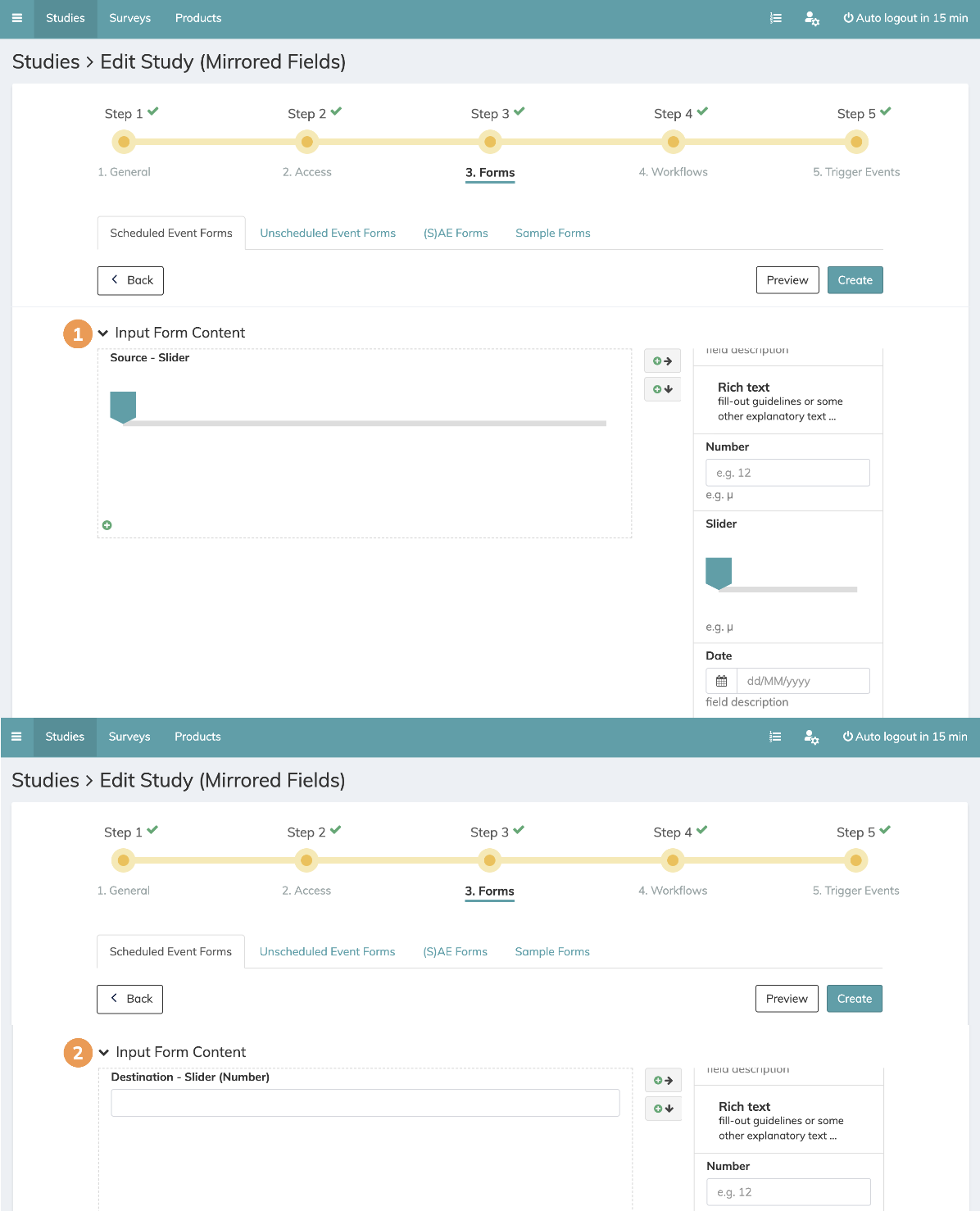
 | Set up your source input field inside the form set-up (step 3). |
 | Set up your destination input field inside the form set-up (step 3). ⭐ We recommend giving the destination input field a similar name to your source input field to facilitate the mirroring set-up in step 5 and to easily identify it in your data exports. |
⚠️ Please note that the source and the destination fields must be placed on two different input forms. |
2. Mirrored field setup (Step 5)
Once you have set up the source and destination field inside your forms, you can start to set up your mirrored fields function.
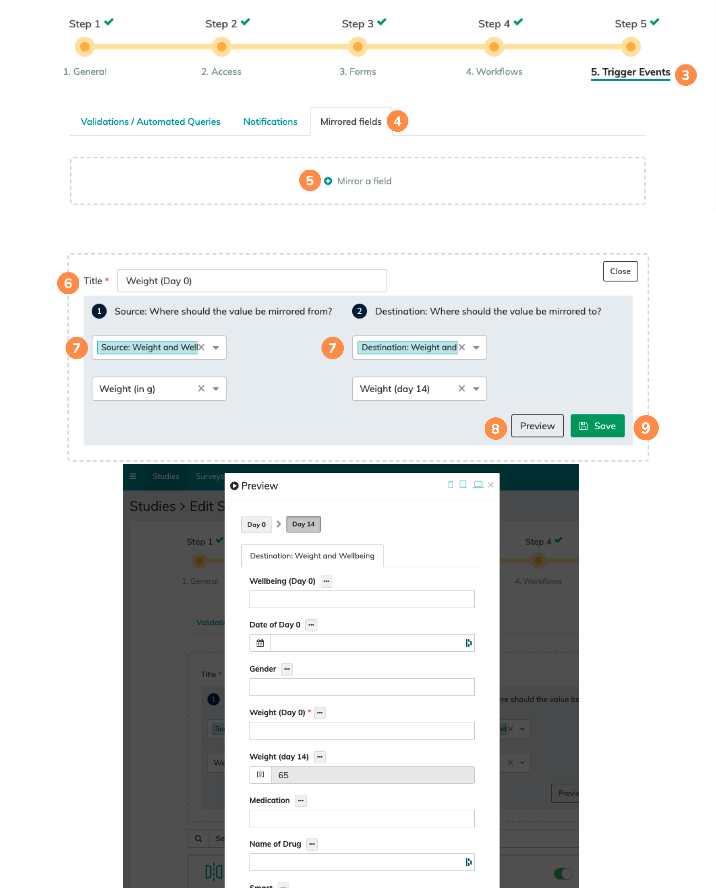
 | Navigate to the Trigger Events in Step 5. |
 | Select the "Mirrored fields" tab here. In the "Mirrored table rows" tab, you can configure row mirroring from a defined source table. During data entry, site users select which rows to mirror into the (S)AE. Learn more in this article: How do I set up mirrored table rows from scheduled events to (S)AEs? |
 | Click on "Mirror a field". |
 | Name your mirrored field comprehensively so you can identify it later on. |
 | Select the source form and field. ⭐ For scheduled event destinations, you can also select the randomization group as the source. Afterwards, please choose the destination form and field that the source value should be mirrored to. ⭐ You can mirror one source field into several destination forms. ⭐ The source and destination fields must be in different forms. When you mirror between two scheduled event forms or two (S)AE forms, the destination form must also come after the source form in the workflow. |
 | Check your set-up using the preview functionality. |
 | Don't forget to save! |
3. Mirrored fields: Good to know
⭐ Utilizing field mirroring to enable smart fields across forms The mirrored fields functionality enables you to perform smart field calculations with input fields that are placed across different forms. Simply mirror all fields that you wish to include in your calculation as destination fields into the same form. For this purpose you can, for example, create a data calculation sheet at the end of the workflow and exclude all collaborator roles that should not see this input form via the "excluded collaborators" setting in the input form setup (step 3). |
⚠️ Amendments/Setting updates to an active project:
|
✉️ Still have questions? Feel free to contact your Customer Success Manager or email us at support@climedo.de. |
Was this article helpful?
That’s Great!
Thank you for your feedback
Sorry! We couldn't be helpful
Thank you for your feedback
Feedback sent
We appreciate your effort and will try to fix the article