Learn how to configure MedDRA medical coding for a study, so that verbatim terms entered by sites are captured and automatically coded against the MedDRA dictionary.
TABLE OF CONTENTS
- 1. Before starting
- 2. Configuring the MedDRA dictionary settings
- 3. Selecting verbatim fields for coding
- 4. Management rights and role rights
- 5. Amendments: updating the configuration on an active study
- 6. Duplication, activation, and sandbox creation
Definitions:
- Verbatim = the free-text term entered by a site user in a form field designated for medical coding (for example "elevated liver enzymes").
- Dictionary version = the MedDRA release used as the coding reference (for example MedDRA 27.1).
- Auto-coding = the system's automatic attempt to map each verbatim to a MedDRA code at the time it is entered or updated.
1. Before starting
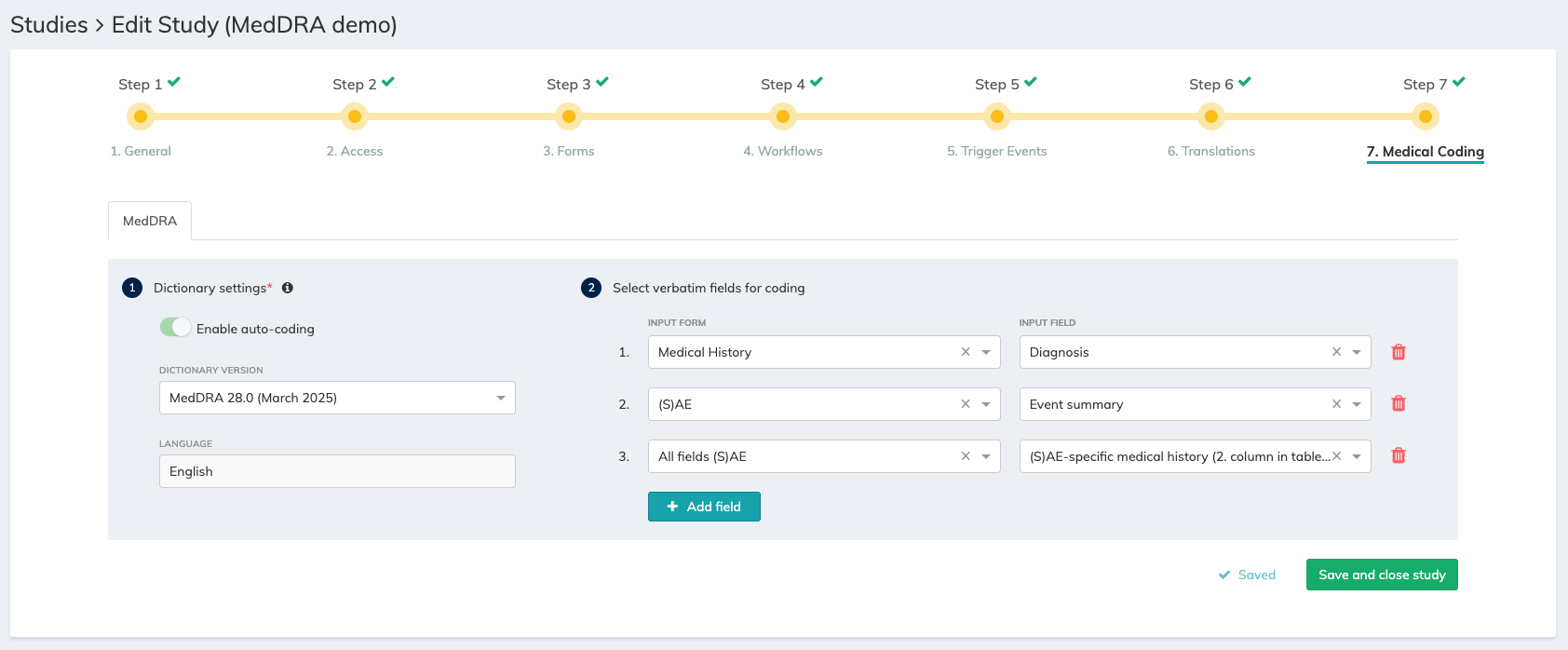
Medical coding is configured in a dedicated Step 7 ("Medical Coding"), reachable via the top progress bar in the study set-up or via the Medical Coding entry under "Study Settings" in the sidebar. The MedDRA tab is active by default.
Before configuring Step 7, confirm that:
- The scheduled event forms and/or (S)AE forms that will hold verbatim input are set up in Step 3 (Forms) and included in the active workflow in Step 4 (Workflows).
- The roles and collaborators who will code, review, or approve verbatims are defined (see Section 4).
⭐ Good to know: Medical coding is available for studies only (not for surveys) and currently supports the MedDRA dictionary. Additional dictionaries, including WHO-Drug, are on Climedo's roadmap — please contact support@climedo.de to discuss upcoming options. |
⚠️ Important: If Step 7 is not visible in the study set-up, medical coding may not yet be activated for the study. Please contact the Customer Success Manager or email support@climedo.de. |
2. Configuring the MedDRA dictionary settings
The Dictionary Settings section controls which MedDRA reference is used for coding across the study.
2.1. Dictionary version
The Dictionary Version dropdown lists all MedDRA release versions available to the account, sorted from most recent to oldest. The most recent release is pre-selected as the default.
- Open the Dictionary Version dropdown.
- Select the release version that should be used as the coding reference for this study.
⚠️Important: The dictionary version applies to every verbatim coded in the study. Changing the version in an active study requires a sandbox amendment and has downstream impact on existing codes — only change it when a version upgrade has been approved by the sponsor. |
2.2. Auto-coding
The "Enable auto-coding" toggle is set to ON and is not editable. AI-supported auto-coding is always active whenever Medical Coding is configured for a study — this means every verbatim value entered or updated in a designated field is sent through the auto-coding pipeline.
Auto-coding works as follows:
- When a verbatim is first entered or later modified, the system attempts to match it against the selected MedDRA dictionary.
- If a code is auto-assigned, the verbatim moves to status "Review pending". If no code could be assigned, the verbatim remains in status "Uncoded" until a coder handles it manually.
2.3. Language
The coding language is fixed to English. Verbatim text may be entered in any language, but the codes returned by the dictionary are always in English.
3. Selecting verbatim fields for coding
The "Select verbatim fields for coding" section defines which form fields hold the free-text values that medical coding should capture.
- Click + Add field to create a new mapping row.
- In the Input Form dropdown, select the form that contains the verbatim field. Forms are grouped by their study step (scheduled events) or by (S)AE context; only forms included in the active scheduled events workflow or in the (S)AE workflow are listed.
- In the Input Field dropdown, select the free-text field or table column that holds the verbatim value. The dropdown is populated after the Input Form is chosen.
- Repeat steps 1–3 for each additional field. Up to five verbatim fields can be configured per study.
- Click Save changes at the bottom right.
⭐ Good to know: Only short text fields, long text fields, and individual columns from tables can be selected as verbatim fields. Other field types (drop downs, dates, numbers, etc.) are not offered in the Input Field dropdown. If an Input Form is changed on an existing mapping row, the Input Field is reset so the correct field can be re-selected. |
4. Management rights and role rights
Access to Medical Coding is controlled in two places: management rights for individual collaborators (who can view or change the configuration) and role rights for sites (who can read, code, approve, or export verbatims).
4.1. Management rights (collaborators)
Management rights for Medical Coding are set per collaborator in Step 2 (Access), inside a dedicated Medical Coding section.
- Medical Coding: View — allows a collaborator to open Step 7 and see the configuration.
- Medical Coding: Configure — allows a collaborator to edit the dictionary settings, add or remove verbatim field mappings, and save changes. Configure requires View.
Related articles:
4.2. Role rights (sites)
Role rights for Medical Coding are set per role in Step 2 (Access), under role right settings, inside a dedicated Medical Coding section.
- Read — the role can open the Medical Coding module and see verbatims and their codes.
- Update / Code — the role can change the status of a verbatim and assign or correct codes. Requires Read.
- Approve — the role can approve coded verbatims. Requires Read and Update/Code: granting Approve automatically grants Update/Code as well.
- Export — the role can export all verbatims with their codes and all relevant information. Requires Read.
Related article:
All Climedo role rights and their explanation
5. Amendments: updating the configuration on an active study
⚠️ Important: The Medical Coding configuration of an active study can only be updated through a sandbox, and is applied to the active study when the sandbox is published. Direct edits to the active study configuration are not possible — this preserves an auditable amendment record for every change. |
5.1. Changes to verbatim fields, forms, and workflow steps
A field, form, or workflow step that is in use by Medical Coding is protected from accidental deletion:
- A verbatim field cannot be removed from its form in Step 3.
- A form that contains at least one verbatim field cannot be removed from the workflow in Step 4.
- For scheduled events only, a step that contains a form with a verbatim field cannot be removed from the workflow in Step 4.
Display-label changes to a verbatim field (for example updating the display label, or export label in Step 3) do not break the mapping — the Medical Coding configuration continues to reference the same field and shows the updated label in Step 7.
5.2. Removing a verbatim from the coding configuration
To stop coding a field, delete its mapping row in Step 7 by clicking the trash icon. A confirmation popup on a red background appears.
⚠️ Important: Archiving a verbatim mapping hides all previously captured verbatims for that field from the Medical Coding module — both new and historical data. After a verbatim has been archived through a published sandbox, the underlying field, form, or workflow step can then be deleted in a subsequent amendment. |
6. Duplication, activation, and sandbox creation
When a study is duplicated, activated, or has a sandbox created, the Medical Coding configuration is copied in full to the new context. This includes the selected dictionary version, the language setting, and all verbatim field mappings.
⭐ Good to know: Verbatim data itself is not duplicated — only the configuration. Test subjects created in a sandbox run through auto-coding using the same dictionary version as the sandbox, and are reset when the sandbox is discarded (see the Sandbox Environment article). |
For how coders, monitors, and data managers work with verbatims once this configuration is in place, see the companion article: Reviewing and coding verbatims in the Medical Coding module
✉️ Still have questions? Feel free to contact your Customer Success Manager or email us at support@climedo.de. |
Was this article helpful?
That’s Great!
Thank you for your feedback
Sorry! We couldn't be helpful
Thank you for your feedback
Feedback sent
We appreciate your effort and will try to fix the article