Learn more about how to proceed with amendments within an active study.
⚠️ Please note: Amendments can only be implemented in the sandbox environment. Please read the following article first: Sandbox Environment - Updating Active Studies and Surveys |
⭐ What is an amendment? And amendment means that your study is active and includes real data, and you wish to add/change/delete something within the set-up. |
⚠️ Every executed amendment will be shown in the Audit Trail. ⚠️ Making an amendment should be thought through very carefully because in some cases this can cause data loss. Please check your specific amendment first in the overview below. |
⭐ Good to know
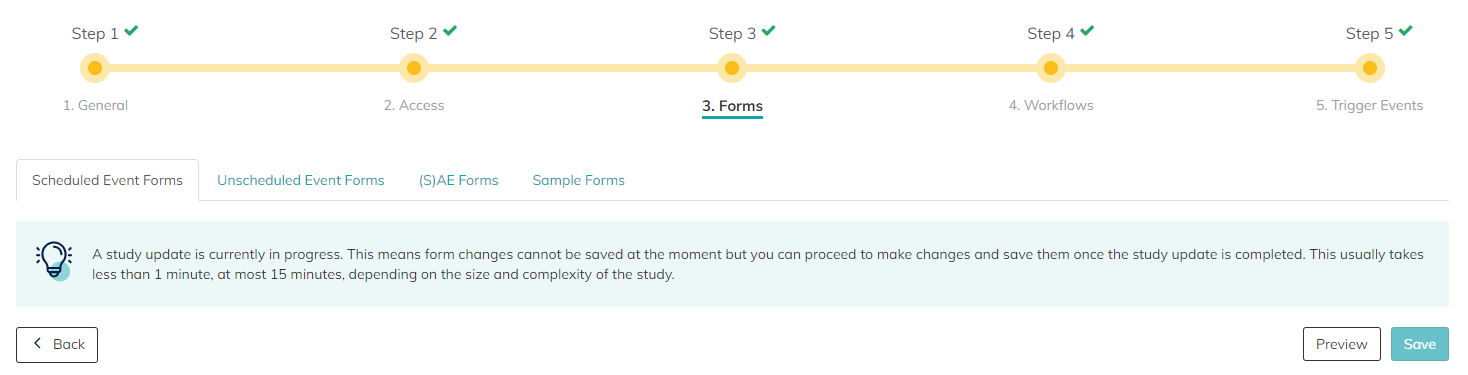
As part of quality assurance, a banner appears in the system while an update to the study setup is being saved, indicating that the changes are being saved in the background and no further changes can be made. This banner will automatically disappear as soon as the saving process is completed. Once the changes are successfully saved, you can continue to make further updates in the study, if desired.
⭐ Following the progress of an amendment

In addition you will see a progress bar to follow the progress of the amendment taking place.
⭐ In case of amendment failure

It can, due several different circumstances, happen, that an amendment fails. In this case you will be informed and have the option to take two actions:
1. Retry the amendment
2. Roll back the changes you have made
If publishing the sandbox fails, you can choose Retry or Roll back. Retry can be used up to 3 times; after that, the platform only allows rolling back. If publishing still fails, roll back and contact our support team, and do not make further changes to your study setup.
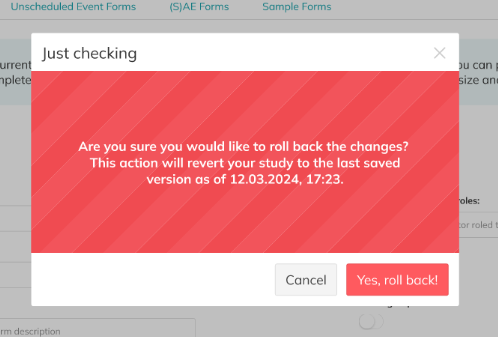
If you roll back your changes, the study workflow settings will be reverted to the last successfully saved state (the timestamp is mentioned in the warning pop-up).
Important: Changes to data entries in the eCRF or ePRO forms will not be affected by this roll back action.
Overview of Amendments (within study set up)
Forms (Step 3)
| Property | Action | Impact | Details |
| Export label of Input Field | Change | ✅ | The new export label will apply to all data entered in this Input Field moving forward. |
| Description of Input Field | Add/Change/Delete | ✅ | This will not affect your data, but can have an impact on the future user experience. |
| Placeholder of Input Field | Add/Change/Delete | ✅ | This will not affect your data, but can have an impact on the future user experience. |
| Rich text | Add/Change/Delete | ✅ | This will not affect your data, but can have an impact on the future user experience. |
| Dependencies | Add/Change/Delete | ✅ | This will not affect your data, but can have an impact on the future user experience. |
| Locking of Form | Add/Change/Delete | ⚠️ | See more in this article |
| Export label of Form | Change | ⚠️ | See more in this article |
| Hierarchical Signature | Change | ⚠️ | See more in this article |
| Whole Input Field | Add/Delete | ⚠️ | See more in this article |
| Display label | Change | ⚠️ | See more in this article |
| Required/Optional | Change | ⚠️ | See more in this article |
| Value | Add/Change/Delete | ⚠️ | See more in this article |
| Validations | Add/Change/Delete | ⚠️ | See more in this article |
Workflow (Step 4)
| Property | Action | Impact | Details |
| Reply to email | Add/Change | ✅ | The new address will apply for any reply moving forward. |
| Order of Workflow | Change | ⚠️ | See more in this article |
| Step/Form | Add/Delete | ⚠️ | See more in this article |
| Step type: ePRO/Visit event | Change | ⚠️ | See more in this article |
| Reminder of ePRO | Add | ⚠️ | See more in this article |
✉️ Still have questions? Feel free to contact your Customer Success Manager or email us at support@climedo.de. |
Was this article helpful?
That’s Great!
Thank you for your feedback
Sorry! We couldn't be helpful
Thank you for your feedback
Feedback sent
We appreciate your effort and will try to fix the article